Installation Guide
Welcome! Don't worry if you aren't familiar with coding or terminals. Follow these simple, step-by-step instructions to get FracSTAT running on your computer.
On this page
Prerequisites (Before You Begin)
- Install Python: The users are requested to install the Python version 3.10 and above. You can download the installer easily from https://www.python.org/downloads/. (During installation, make sure to check the box that says "Add Python to PATH" if you are on Windows!)
- Download FracSTAT: After installing Python, login to GitHub and download the FracSTAT application. You can find the download link here: https://github.com/sachi5908/FracSTAT.
1. Windows Installation
Step 1: Prepare the Folder
Create a new folder in the preferred location (e.g., Desktop or any other drive such as D or E). Once done, then copy and extract the entire FracSTAT application into this folder.
Step 2: Open the Command Prompt
Next, open the command prompt (CMD) to tell your computer what to do. You can do this by pressing the Windows Key, typing cmd, and hitting Enter.
Step 3: Navigate to Your Folder
You need to tell the command prompt where your FracSTAT folder is located. We use the cd (Change Directory) command for this. Navigate to the FracSTAT project directory by typing cd followed by the path to your folder, then hit Enter.
Step 4: Install Required Packages
FracSTAT needs a few background tools to run properly. Once you are into the project directory, install all the required Python packages by running the following command and hitting Enter:
python -m pip install -r requirements.txtOnce you hit “Enter” in the command prompt, all the required packages will automatically get installed in the system memory. You will see a lot of text scrolling by—this is completely normal!
Step 5: Launch FracSTAT
Next, to open the main graphic user interface (GUI) of FracSTAT, type the following command and hit Enter:
python main.py2. macOS Installation
Step 1: Prepare the Folder
Create a new folder on your Mac (e.g., on your Desktop), then copy and extract the entire FracSTAT application into this folder.
Step 2: Open Terminal
Press Command (⌘) + Space to open Spotlight, type Terminal, and hit Enter to open the command line application.
Step 3: Navigate to Your Folder
Use the cd command (which stands for Change Directory) to tell Terminal where your FracSTAT folder is. Type this command and hit Enter:
Step 4: Install Required Packages
FracSTAT needs a few background tools to run smoothly. Copy, paste, and run the following command to download and install them:
python3 -m pip install -r requirements.txtStep 5: Launch FracSTAT
Finally, to start the application and open the main GUI of FracSTAT, type the following command and hit Enter:
python3 main.py3. Linux Installation
Step 1: Prepare the Folder
Create a new directory in your preferred path (like your Downloads folder), copy, and extract the entire FracSTAT application into this folder.
Step 2: Open Terminal
Open your system's Terminal application (usually you can press Ctrl + Alt + T).
Step 3: Navigate to Your Folder
Use the cd (Change Directory) command to move into the FracSTAT project directory. Press Enter after typing:
Step 4: Install Required Packages
Run the following command to let the system automatically fetch and install the required Python packages:
python3 -m pip install -r requirements.txtStep 5: Launch FracSTAT
Open the FracSTAT GUI by typing the final command and pressing Enter:
python3 main.pyWelcome to FracSTAT
If you followed the steps correctly, this will open the GUI of FracSTAT!
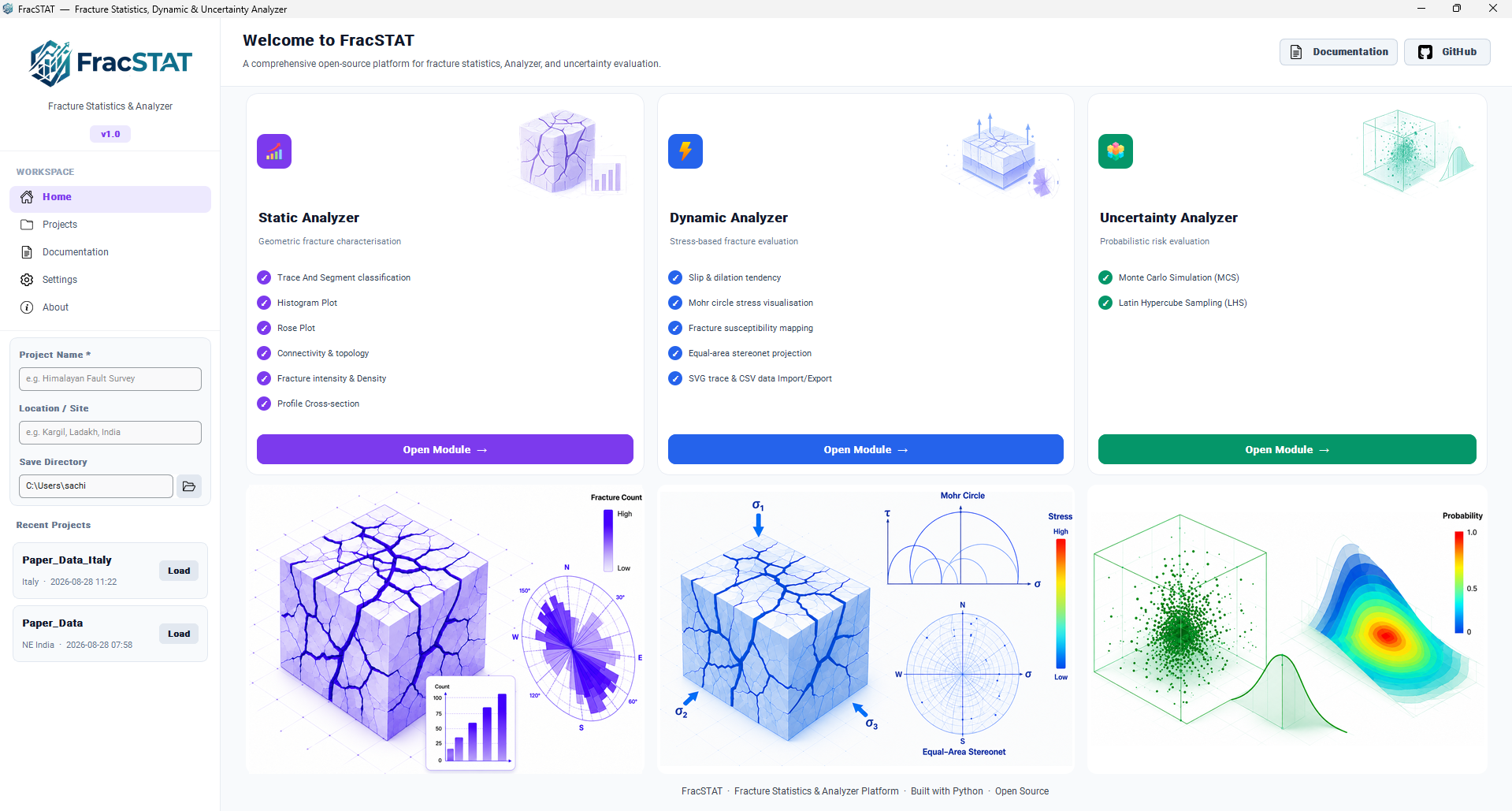
Now that the users are ready to get into the FracSTAT application, they are requested to explore each of the modules. It is noted that FracSTAT v1.0 is fully equipped with the Static Analyzer, Dynamic Analyzer and Uncertainty Analyzer modules. Enjoy analyzing your data!